
K1 Game Install APK – How to Install the Latest Version on Android
To install the latest K1 Game APK on Android, download the official APK, open the downloaded file, allow installation from your browser or file manager when Android asks, and tap Install. Once installation is complete, open K1 Game APP and sign in with your existing account or create a new account if you are a new user.
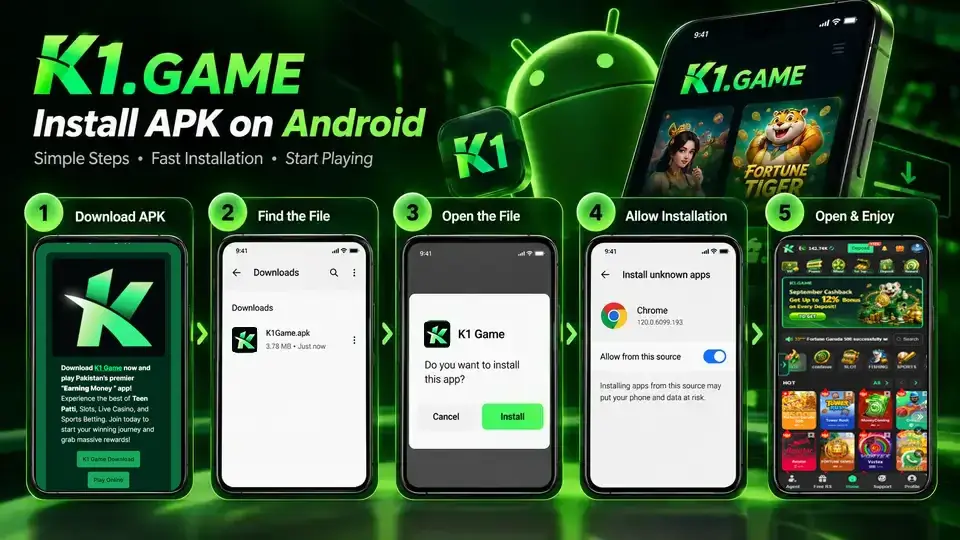
The K1 Game APK installation process usually takes only a few minutes. This guide explains how to download and install the K1 Game APK latest version, find the APK file on your phone, enable the required Android permissions, update an existing installation, and fix common problems such as “App not installed” or an APK file that will not open.
Table of Contents
K1 Game APK Installation Requirements
Before installing the K1 Game APK, make sure your Android device meets the current app requirements and has enough free storage for installation.
The current K1 Game Android requirements are:
| Requirement | Details |
|---|---|
| Operating System | Android 6.0 or later |
| APK Version | V0.7.58 |
| Internet | Stable Wi-Fi or mobile data |
| Storage | Enough free space for download and installation |
| Installation Permission | May need to allow installation from your browser or file manager |
| Account | Existing account or new registration |
The APK file itself is only part of the installation process. Android may need additional temporary storage while installing the app, so keeping some extra free space is recommended.
Check K1 Game System Requirements →
How to Install K1 Game APK on Android
Installing K1 Game APK on Android involves downloading the official APK, opening the file, granting the required installation permission, and completing the installation.
Follow these steps in order:
Download APK → Open File → Allow Installation → Install → Open K1 Game
Let’s go through each step.
Step 1: Download the Official K1 Game APK
Start by downloading the latest official K1 Game APK from the K1 Game Download page.
Open the download page in your Android browser and select the Android APK download option. Your browser may ask you to confirm that you want to download an APK file.
Wait until the download is completely finished before opening it.
Avoid downloading modified, unofficial, or outdated K1 Game APK files from unknown third-party websites. Using the official download source also makes it easier to check whether you are installing the current version.
Step 2: Find the Downloaded K1 Game APK
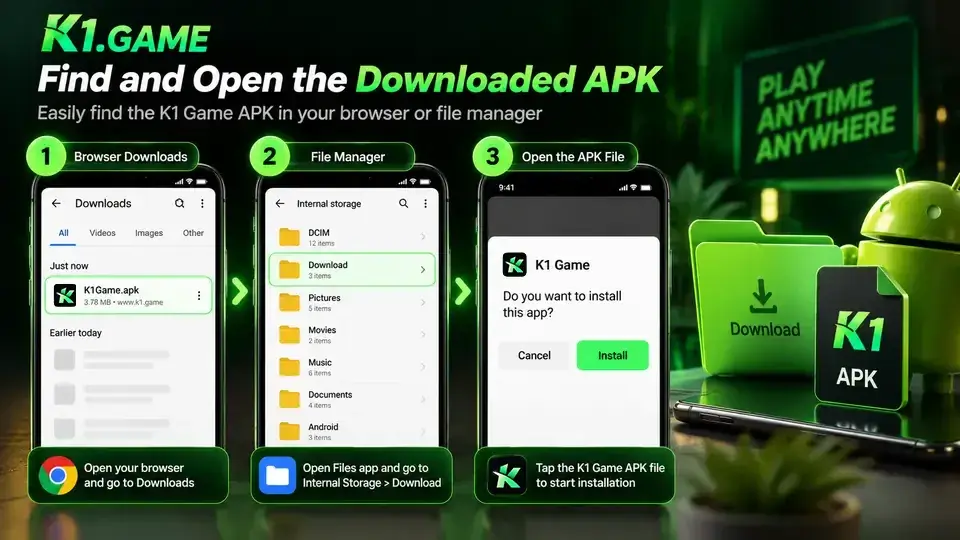
After the download finishes, you can usually find the K1 Game APK in your Android Downloads folder or your browser’s download list.
Try one of these methods:
Browser Downloads
Open the browser you used to download the APK and select:
Menu → Downloads
Find the K1 Game APK and tap it.
Android Files
Open your phone’s Files or File Manager app and go to:
Internal Storage → Download
The exact menu names can vary depending on your Android phone.
You can also tap the completed download notification if it is still visible in your notification panel.
Step 3: Open the K1 Game APK File
Tap the downloaded K1 Game APK file to start the Android installation process.
If your phone already allows your browser or file manager to install APK files, Android should display the installation screen.
You can then continue to the Install button.
If Android blocks the installation, you may see a message related to unknown apps, unknown sources, or permission to install apps from this source.
That is when you need to complete the next step.
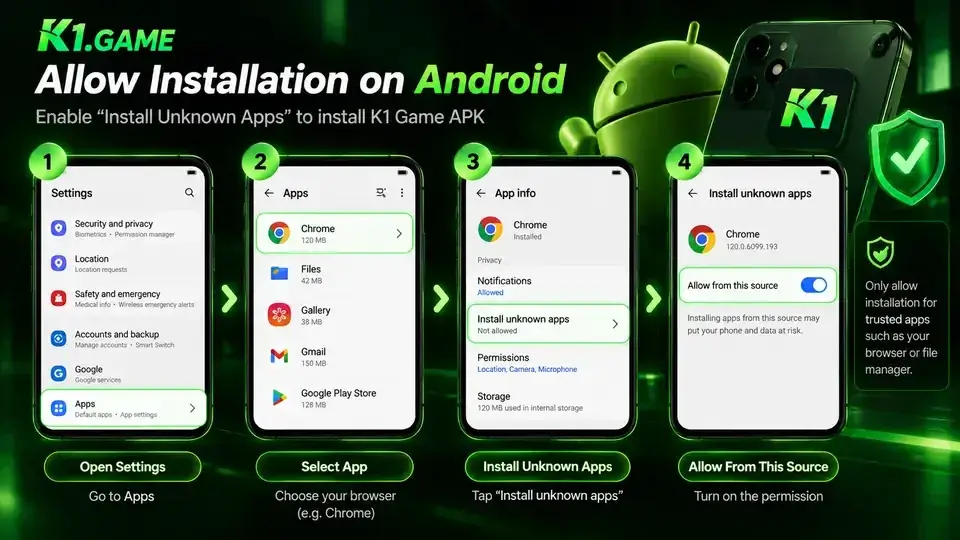
Step 4: Allow APK Installation on Android
If Android blocks the K1 Game APK, allow the browser or file manager you used to open the file to install apps from that source.
On many Android devices, the process looks similar to:
Settings → Install Unknown Apps → Select Browser/File Manager → Allow From This Source
You may also be taken directly to the relevant permission screen after tapping the APK.
For example, if you downloaded the file through Chrome, Android may ask whether Chrome is allowed to install apps. If you opened it through a file manager, permission may instead be requested for that file manager.
The exact wording and menu location can differ by Android version and phone manufacturer.
After enabling the required permission, return to the APK file and open it again.
For better security, only grant this permission to the app you actually used to access the official APK. You can disable the permission again after installation if you do not need it.
Step 5: Install K1 Game APK
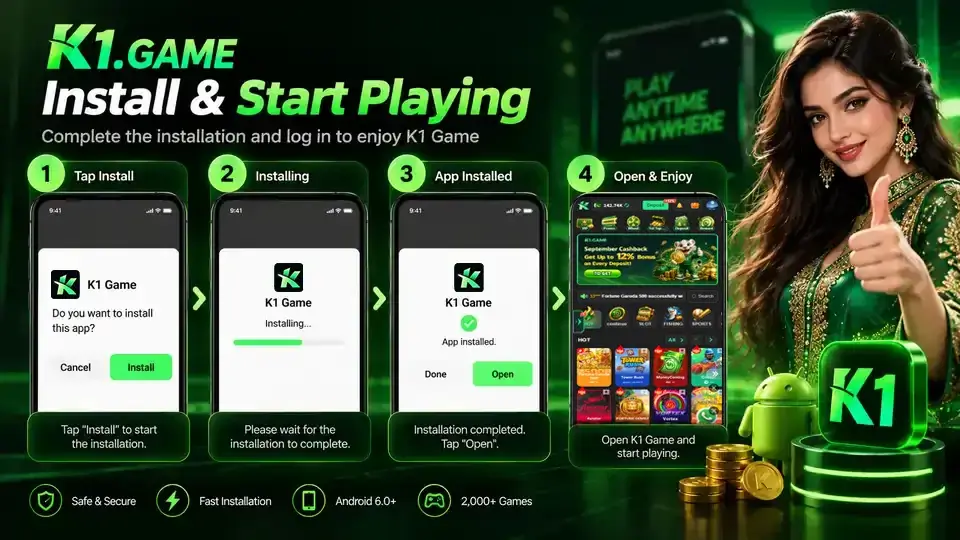
Once Android displays the installation screen, tap Install and wait for the K1 Game APK installation to finish.
Do not close the installer while the process is running.
Installation time depends on your device, available storage, and Android version, but it should normally complete without requiring additional setup.
When Android confirms that the app has been installed, you can select:
Open
or return to your home screen and tap the K1 Game icon.
Step 6: Open K1 Game and Sign In
After installation, open K1 Game and sign in with your existing account details or register a new account if you do not already have one.
Installing a new APK does not mean you need to create another account.
Existing users should continue with their existing login method, such as their registered account details or other supported sign-in option.
How to Install the K1 Game APK Latest Version
To install the K1 Game APK latest version, download the current official APK, open it on your Android device, approve the installation permission if required, and complete the installation.
If you already have K1 Game installed, you will usually want to update the existing installation rather than create a completely separate app.
The basic process is:
- Visit the official K1 Game Download page.
- Check the currently available APK version.
- Download the latest K1 Game APK.
- Open the downloaded file.
- Allow installation if Android requests permission.
- Tap Install or the available update option.
- Wait for installation to complete.
- Reopen K1 Game.
You can also upgrade directly inside the K1 Game app when an in-app update is available.
That gives existing users two main options:
| Update Method | Best Used When |
|---|---|
| In-app upgrade | K1 Game already opens normally and an update is available |
| Latest official APK | You want to manually install the newest available APK |
How to Update K1 Game to the Latest Version →
Do I Need to Uninstall the Old K1 Game Version First?
You generally do not need to uninstall the old K1 Game version before trying to install the latest official APK over your existing installation.
If your current version is working, first try:
Download Latest Official APK → Open APK → Install/Update Existing App
This is preferable to immediately deleting the app.
Uninstalling may remove locally stored app data or settings. Before reinstalling, make sure you know the account information you need to sign back in.
If the normal update process fails because of an installation conflict, follow the troubleshooting steps below before deciding whether a clean reinstall is necessary.
K1 Game APK Won’t Install? Try These Fixes
If the K1 Game APK won’t install, check the APK installation permission, available storage, download status, Android compatibility, and whether an existing installation is causing a conflict.
Here are the most common problems.
“App Not Installed” Error
The “App not installed” message means Android could not complete the APK installation, but it does not identify one single cause.
Possible reasons include:
- Insufficient storage
- Incomplete APK download
- Existing app conflict
- Unsupported Android version
- Damaged APK file
- Installation permission problem
First delete the incomplete downloaded file, restart the phone, download the latest official APK again, and retry the installation.
If you already have K1 Game installed, also check whether you are trying to install an older or incompatible package over your current version.
Android Blocks the APK Installation
If Android blocks the installation, check whether your browser or file manager has permission to install apps from that source.
Return to:
Settings → Install Unknown Apps
Select the browser or file manager you are using and enable the required permission.
Then reopen the APK.
Do not enable APK installation for unrelated apps unnecessarily.
K1 Game APK Does Not Open
If tapping the APK does nothing, confirm that the file finished downloading and try opening it through your Android file manager.
Go to:
Files → Downloads → K1 Game APK
If the file size appears incomplete or the download was interrupted, delete it and download a fresh copy.
Not Enough Storage
K1 Game APK installation can fail when the device does not have enough free storage to unpack and install the application.
Try removing:
- Unused apps
- Old APK files
- Large downloads
- Unnecessary videos
- Temporary files
You should keep more free space than the size of the APK itself because Android needs working space during installation.
The APK Download Was Interrupted
An interrupted or incomplete K1 Game APK download may produce a file that Android cannot install correctly.
This can happen when:
- Internet connection drops
- Browser closes during download
- Storage becomes full
- Download is manually interrupted
Delete the incomplete APK and download it again using a stable connection.
Your Android Version Is Too Old
K1 Game currently requires Android 6.0 or later, so an older Android version may prevent installation or normal operation.
You can usually check your version under:
Settings → About Phone → Android Version
Menu names vary between manufacturers.
If your device does not meet the current requirement, updating the operating system may help where an official Android update is available for the device.
K1 Game Installed but Won’t Open
If K1 Game installs successfully but does not open, restart the app and your phone, check your internet connection, and confirm that you installed the latest official version.
If the problem continues, check:
- Available storage
- Network connection
- App cache
- Android compatibility
- Current K1 Game version
- Background apps using excessive memory
On lower-specification phones, closing unnecessary background applications before opening K1 Game may also help.
For loading screens, blank screens, crashes, and similar problems, use the dedicated troubleshooting guide instead of repeatedly reinstalling the APK.
K1 Game App Not Loading? Common Causes and Fixes →
Installing K1 Game APK on a Low-End Android Phone
K1 Game can run on compatible lower-end Android phones, but keeping enough free storage and memory available can improve the experience.
Before installation:
- Confirm the phone meets the current Android requirement.
- Remove unnecessary APKs and large files.
- Close memory-heavy background apps.
- Use a stable network for the download.
- Install the latest official K1 Game APK.
- Restart the device if performance is unusually slow.
Avoid third-party “RAM booster” or APK-modification tools. They are not required for a normal K1 Game installation.
How to Use K1 Game on a Low-End Android Phone →
Is It Safe to Install the K1 Game APK?
Installing an APK is safest when the file comes from the official source and has not been modified by an unknown third party.
APK is the standard Android application package format used to distribute and install Android apps.
The important distinction is therefore not simply whether a file is an APK, but where the APK came from.
For K1 Game:
- Use the official download page.
- Avoid modified APKs.
- Avoid unknown third-party download sites.
- Do not install files sent by unfamiliar accounts.
- Keep Android security features enabled.
- Review unexpected permission requests before accepting them.
If you are unsure whether an APK is current, return to the official Download page and compare it with the latest available version.
K1 Game APK Installation Checklist
If you want the shortest possible installation process, use this checklist from download to first launch.
| Step | What to Do |
|---|---|
| 1 | Confirm Android 6.0+ |
| 2 | Make sure enough storage is available |
| 3 | Download the latest official K1 Game APK |
| 4 | Open the APK from Downloads |
| 5 | Allow installation from the browser/file manager if requested |
| 6 | Tap Install |
| 7 | Wait for installation to finish |
| 8 | Open K1 Game |
| 9 | Sign in or create an account |
| 10 | Disable unnecessary APK installation permissions if desired |
Frequently Asked Questions
How do I install K1 Game APK?
Download the official K1 Game APK, open the downloaded file, allow your browser or file manager to install apps if Android requests permission, and tap Install.
How do I install the K1 Game APK latest version?
Download the latest official APK from the K1 Game Download page and install it on your Android device. Existing users can also use the in-app upgrade option when available.
Where can I find the K1 Game APK after downloading it?
The APK is usually stored in your Android Downloads folder. You can also find it in your browser’s download history or through the Files app.
Why can’t I install K1 Game APK?
Common causes include blocked APK installation permissions, insufficient storage, an incomplete download, an old Android version, or a conflict with an existing installation.
Why does Android block K1 Game APK?
Android may block APK files until you authorize the browser or file manager to install apps from that source. This is an Android security feature.
How do I allow K1 Game APK installation?
Open the relevant “Install unknown apps” setting and allow installation for the browser or file manager you used to open the official APK. The exact path varies by Android device.
What Android version does K1 Game require?
The current K1 Game Android requirement is Android 6.0 or later.
Do I need to uninstall the old K1 Game before installing the latest APK?
Usually, you should first try installing the latest official APK over the existing installation. Uninstall only when necessary to resolve an installation problem.
Can I update K1 Game using the latest APK?
Yes. You can install the latest official APK to update K1 Game, or use the in-app upgrade option when an update is available there.
What should I do if K1 Game says “App not installed”?
Check your storage, Android version and installation permission, then delete any incomplete APK and download the latest official file again. An existing app conflict can also cause this error.
Is K1 Game APK safe to install?
Use the official K1 Game APK rather than modified or unknown third-party versions, and review Android permission requests during installation.
Why won’t K1 Game open after installation?
Restart the app and device, check your network connection and available storage, and confirm that you installed the latest compatible version. If it still fails, follow the K1 Game app loading troubleshooting guide.
Install the Latest K1 Game APK
Installing the K1 Game APK latest version on Android is straightforward: download the official APK, open the file, allow installation when Android requests it, tap Install, and launch the app.
Remember the basic process:
Official APK → Download → Allow Installation → Install → Open → Login
If K1 Game is already installed, check for an in-app upgrade or install the latest official APK over your current version before considering a full reinstall.